How to copy Tailwind classes from any website
You see a button on a website. It's exactly the style you want for your project. You're using Tailwind. You'd love to just copy the classes — flex items-center gap-2 rounded-xl bg-primary px-4 py-2.5 text-sm font-semibold text-white shadow-sm hover:shadow-md — and paste them into your code.
The problem: most websites don't ship Tailwind classes. They ship compiled CSS, often with hashed class names like .btn-3a7f8b or styled-components output that's been minified into .css-1a2b3c. The Tailwind that produced it is long gone.
Here's how to get it back.
Why this is hard manually
When a site is built with Tailwind and shipped, the build step extracts only the utility classes that were actually used and bundles them into a single CSS file. The HTML on the page still has class names — sometimes the original Tailwind classes, sometimes hashed ones, depending on how the framework handles it.
Even when the original Tailwind classes are visible:
<!-- Visible in DevTools -->
<button class="flex items-center gap-2 rounded-xl bg-blue-600 ...">
You'd still have to:
- Copy the full class string
- Strip out classes specific to the source's design tokens
- Identify which utility values map to your project's tokens
- Reconstruct the hover/focus/active variants from CSS
For a single button, manageable. For a feature section with nested elements, hover states, and responsive breakpoints? You'll spend an hour to save five minutes — time you could have used to ship the actual feature.
And when the site uses CSS-in-JS or CSS modules, the original Tailwind is gone entirely. You only have the computed CSS.
The fast path: extract with Slicer
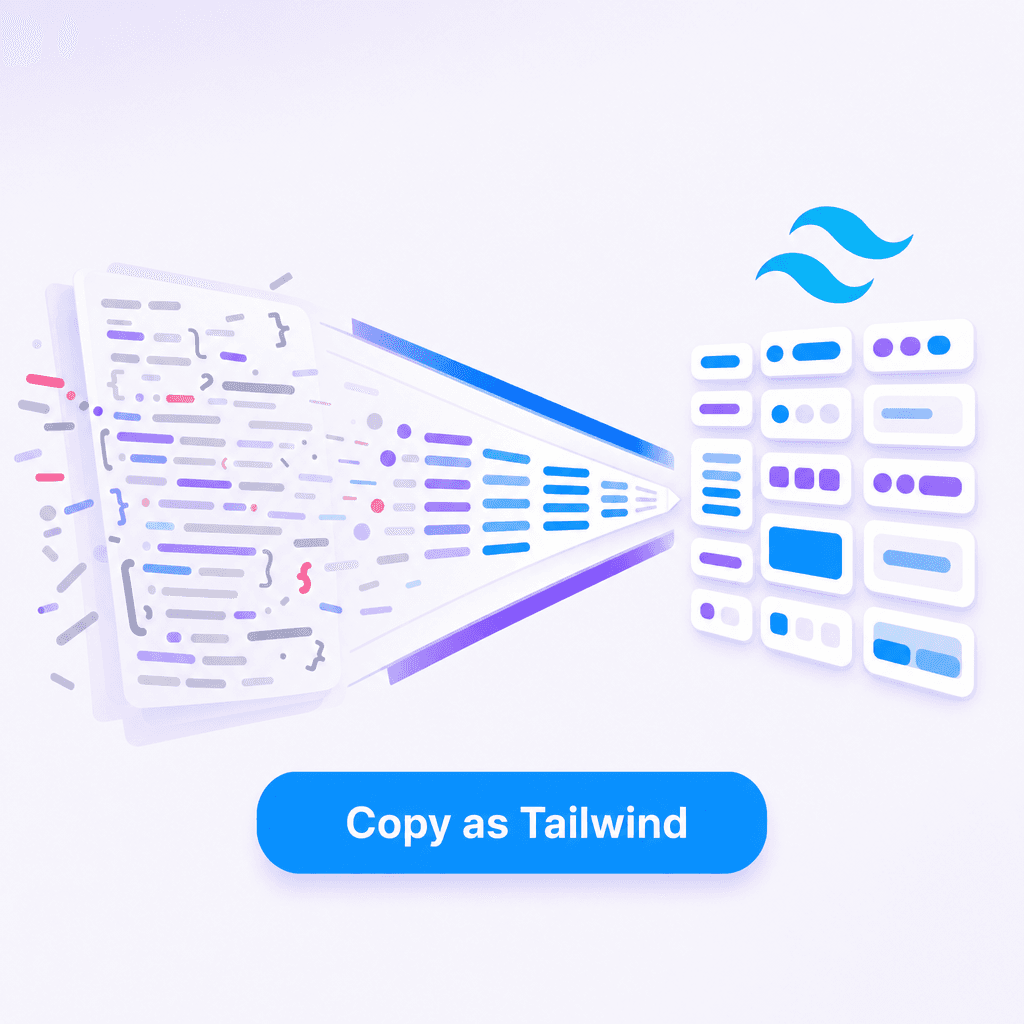
Slicer reads the rendered DOM, computes the styles, and converts them back into Tailwind utilities — even when the source didn't use Tailwind.
The workflow:
- Click the Slicer icon in your Chrome toolbar to activate
- Hover the element, click to select. Use ↑/↓ arrow keys to widen or narrow the selection
- The Canvas opens — apply your brand colors here if you want to remap them
- Export as React
The output uses Tailwind classes by default:
export function FeatureCard({ icon, title, description }: FeatureCardProps) {
  return (
    <div className="group flex flex-col gap-4 rounded-2xl bg-white p-6 shadow-sm ring-1 ring-gray-100 transition-all duration-200 hover:-translate-y-0.5 hover:shadow-md">
      <div className="flex h-10 w-10 items-center justify-center rounded-xl bg-blue-50 text-blue-600 transition-colors group-hover:bg-blue-100">
        {icon}
      </div>
      <h3 className="text-sm font-semibold text-gray-900">{title}</h3>
      <p className="text-sm leading-relaxed text-gray-500">{description}</p>
    </div>
  );
}
Notice what's already there: spacing, sizing, border radius, shadow, ring, hover transform, hover shadow, hover color transition, group-hover wiring. Everything is in Tailwind utilities.
What Slicer captures correctly
| Property | What you get |
|---|---|
| Padding / margin | Tailwind spacing utilities (p-6, pt-2.5, etc.) |
| Colors | Closest Tailwind color or hex if it's outside the palette |
| Border radius | rounded-md, rounded-lg, rounded-2xl, etc. |
| Box shadow | shadow-sm, shadow-md, or arbitrary values when needed |
| Transitions | transition-all, duration-200, ease-out |
| Hover states | hover: variants for transform, color, shadow |
| Group hover | group and group-hover: correctly wired |
| Responsive | sm:, md:, lg: breakpoints |
When a value doesn't have a clean Tailwind equivalent (custom shadows, exact pixel values), Slicer uses arbitrary values: shadow-[0px_4px_12px_rgba(0,0,0,0.08)], w-[428px]. You can refactor these into your tailwind.config later.
Adapting the output to your design system
The extracted Tailwind uses the source site's color palette. You'll typically want to remap to your tokens.
Two ways to do this:
1. Remap on the Canvas before export
Slicer's Canvas step lets you apply brand styles before exporting. Set your primary color, surface, and text colors, and the export uses your tokens automatically.
2. Find-and-replace after export
For quick swaps, paste the extracted code and run a find-and-replace:
bg-blue-600  →  bg-primary
text-blue-600  →  text-primary
ring-gray-100  →  ring-border
text-gray-500  →  text-subtle
If your project uses Tailwind v4 with @theme tokens, this maps cleanly. If you're on Tailwind v3, your config probably already has the brand colors set up — same approach.
For components you'll reuse across a project, set up your design tokens first, then extract directly into them via the Canvas step. Saves the find-and-replace pass.
What about sites built with CSS-in-JS?
This is where Slicer matters most. Sites built with styled-components, Emotion, or CSS modules ship CSS that has nothing to do with Tailwind. Even DevTools shows you .css-1a2b3c { padding: 1.5rem; } instead of useful class names.
Slicer doesn't care. It reads the computed styles — the actual rendered values — and converts them into Tailwind utilities. The source's framework is irrelevant. If it renders, Slicer can extract it.
This works for sites built with:
- styled-components
- Emotion
- CSS Modules
- Vanilla CSS
- Sass / Less
- Bootstrap, Bulma, or any other utility framework
- Tailwind itself
- Webflow
- Wix / Squarespace / Cargo
Common gotchas
Arbitrary values for fonts. If the source uses a custom font that's not loaded in your project, the extracted code will reference a font-family Tailwind doesn't know about. Either load the font in your project or replace with your own.
Background images and gradients. SVG backgrounds and complex gradients get extracted as inline styles or arbitrary values. They work, but they're not clean utilities — refactor into a CSS variable or component-level style if reused.
z-index stacking. Slicer extracts z-index values but doesn't know the stacking context of your project. You may need to adjust to fit your layering scheme.
A faster default for shipping UI
Once this workflow is in your toolkit, "I want that styled the way they styled it" stops beeing a 30-minute DevTools session. It's a click and a paste.
Install Slicer, find a button, card, or section you like, and try it. The first extraction takes longer to read than to do.