How to use Slicer with Cursor
Cursor changed how fast you can ship a product. But ask it for a "modern hero section with a gradient and a CTA" and you get the same generic output as every other indie SaaS — because it's interpolating from the same training data as everyone else.
The fix isn't a better prompt. It's a better input.
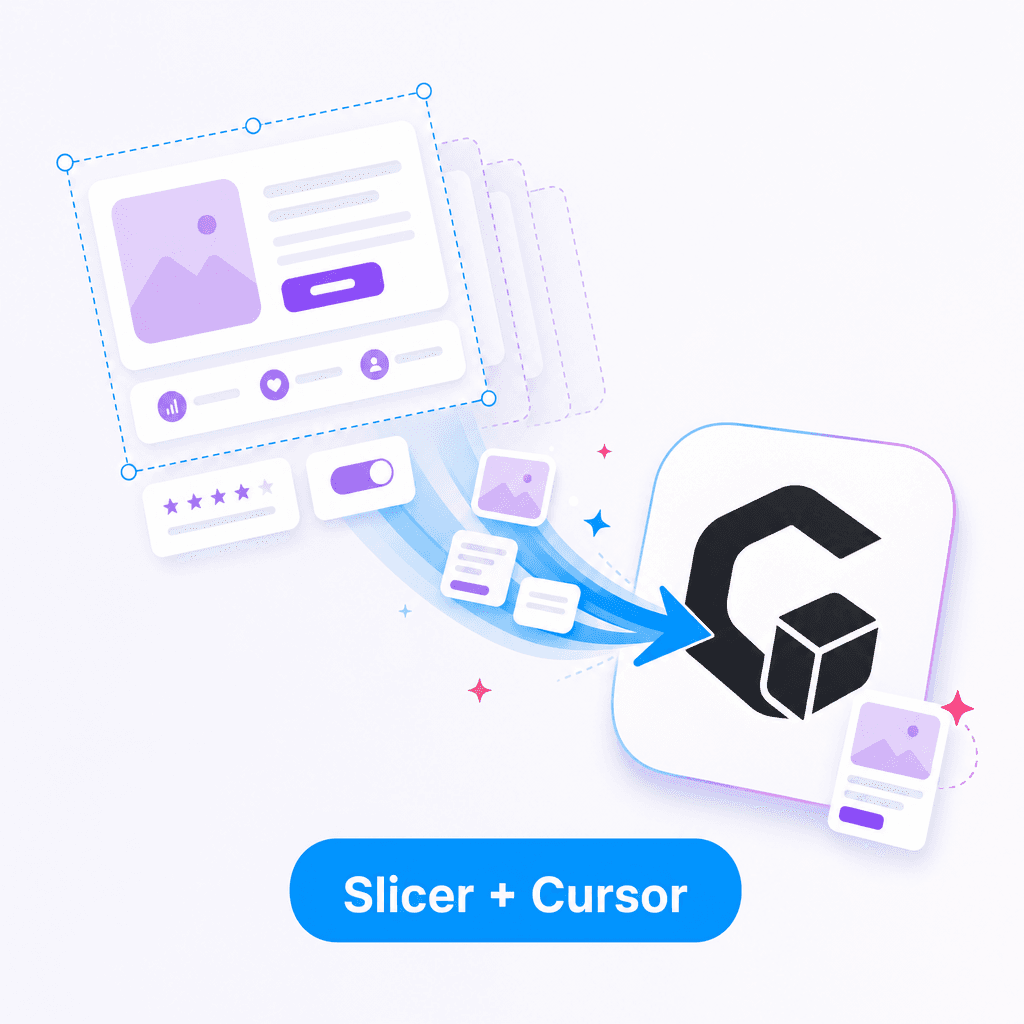
The Cursor + Slicer workflow in 60 seconds
- Browse the web. Find a hero, pricing card, feature block, or nav you genuinely like.
- Click the Slicer icon in your Chrome toolbar to activate it.
- Click the component. Use ↑/↓ arrow keys to widen or narrow the selection.
- Apply your brand colors on the Canvas (or skip it — your call).
- Export as AI Prompt or React.
- Paste into Cursor's chat with a single instruction.
That's it. Cursor now has a real reference to work from instead of imagining one.
What to paste into Cursor
You have two options depending on what you want.
Option A: Paste the AI Prompt export
The AI Prompt export from Slicer is a structured description of the component — exact colors, spacing, typography, hover states, animation timings. It's longer than a normal prompt because it captures everything Cursor would otherwise have to invent.
Then in Cursor's composer:
Build this as a React component for my app. Use my brand color
(#6366f1) for primary actions and Tailwind for styling. Keep the
hover and animation behavior exactly as described.

[paste the Slicer AI Prompt export here]
Cursor produces a clean component you can drop into your app — with the visual quality of the original.
Option B: Paste the React export
The React export is closer to a finished component. Use this when you want the structure and styling intact, and just need Cursor to wire it into your project.
Drop this into my app:
- Swap the colors for my brand: primary #6366f1, text dark gray
- Use Lucide icons instead of inline SVGs
- Make the title, description, and CTA into props so I can reuse it
- Keep the hover and transition behavior

[paste the Slicer React export here]
Cursor refactors it into something that fits your project while preserving everything visual.
For small components (buttons, badges, inputs), Option B is faster. For full sections (hero, pricing, navigation), Option A gives Cursor more freedom to fit your architecture.
Why this beats prompting from scratch
A prompt without a reference asks Cursor to invent a design. Cursor's training data biases toward what it has seen most: shadcn defaults, generic SaaS patterns, gray-on-white cards. The output is plausible but generic.
A prompt with a Slicer reference asks Cursor to adapt a design that already works. The proportions are correct because they come from a real, shipping product. The hover state exists because someone already designed it. The responsive layout is intentional because someone tested in on an actual phone.
You're inheriting design quality that Cursor can't generate.
A real example
Say you want a pricing card with three tiers, the middle one highlighted, with a smooth lift on hover.
Without Slicer, you prompt Cursor:
"Create a pricing section with 3 cards, middle one highlighted, with hover effects"
You get a competent, generic pricing section. The cards are equal width. The "highlighted" tier has a slightly bolder border. The hover is a basic shadow change. It looks like every other Cursor-generated pricing section on the internet.
With Slicer, you find a pricing section you genuinely like (Linear, Vercel, Stripe — pick anything). You extract it. You paste the prompt into Cursor with: "Build this for our product, swap colors to our tokens."
You get a pricing section with thoughtful spacing ratios, a real highlight treatment (gradient ring? subtle elevation? scale transform?), an actual hover physics curve. It looks intentional because it is intentional — you just didn't have to invent it.
Setting up a repeatable workflow
If you're building a landing page or full app with Cursor, do this once at the start:
- Spend 20 minutes browsing 3–5 sites whose UI you wish you'd built
- Extract 8–10 components with Slicer (hero, features, pricing, CTA, footer, nav, testimonial, FAQ)
- Save the AI Prompt exports in a
references/folder in your project - When working in Cursor, drag the relevant reference into the chat
You're building a private design library that Cursor can reference. The whole project stays at one quality bar instead of going generic on the bits you didn't think hard about.
Slicer's exports are designed for AI tools. The AI Prompt format is structured specifically so Cursor, Claude Code, v0, and Lovable can parse it without losing fidelity.
What this changes about your workflow
Cursor becomes a tool for adapting and integrating high-quality design instead of generating design from scratch. That's a much smaller task with a much higher hit rate.
The first component you copy + paste through this workflow will feel like cheating. The second one will feel like the obvious way to work.
Install Slicer and try it on the next component you ask Cursor to build. Pick a site you admire. Extract. Paste. Ship.