How to extract CSS and animations from any website
You've seen it: a smooth card lift on hover, a staggered entrance animation, a marquee that flows perfectly, a button with a subtle pulse. You want it in your project. You open DevTools and the descent begins.
Twenty minutes later you're buried in a pile of computed styles, animation-name: a7fKj2, and a Styles panel so large it needs its own scrollbar.
This is a solved problem. Here's how to actually do it.
Why animations are hard to extract manually
CSS animations are spread across at least three separate places:
- The element's class — references the animation name
- The
@keyframesrule — somewhere in a stylesheet, possibly minified - The computed values — duration, easing, delay, fill-mode
For a simple transition that's manageable. For a component with multiple staggered elements, entering animations, hover states, and a looping background effect — you're doing archaeology.
Worse, most production sites use CSS-in-JS or CSS modules, which means the class names are hashed (animation-name: css-1a2b3c) and the original source is gone.
The direct route: Slicer
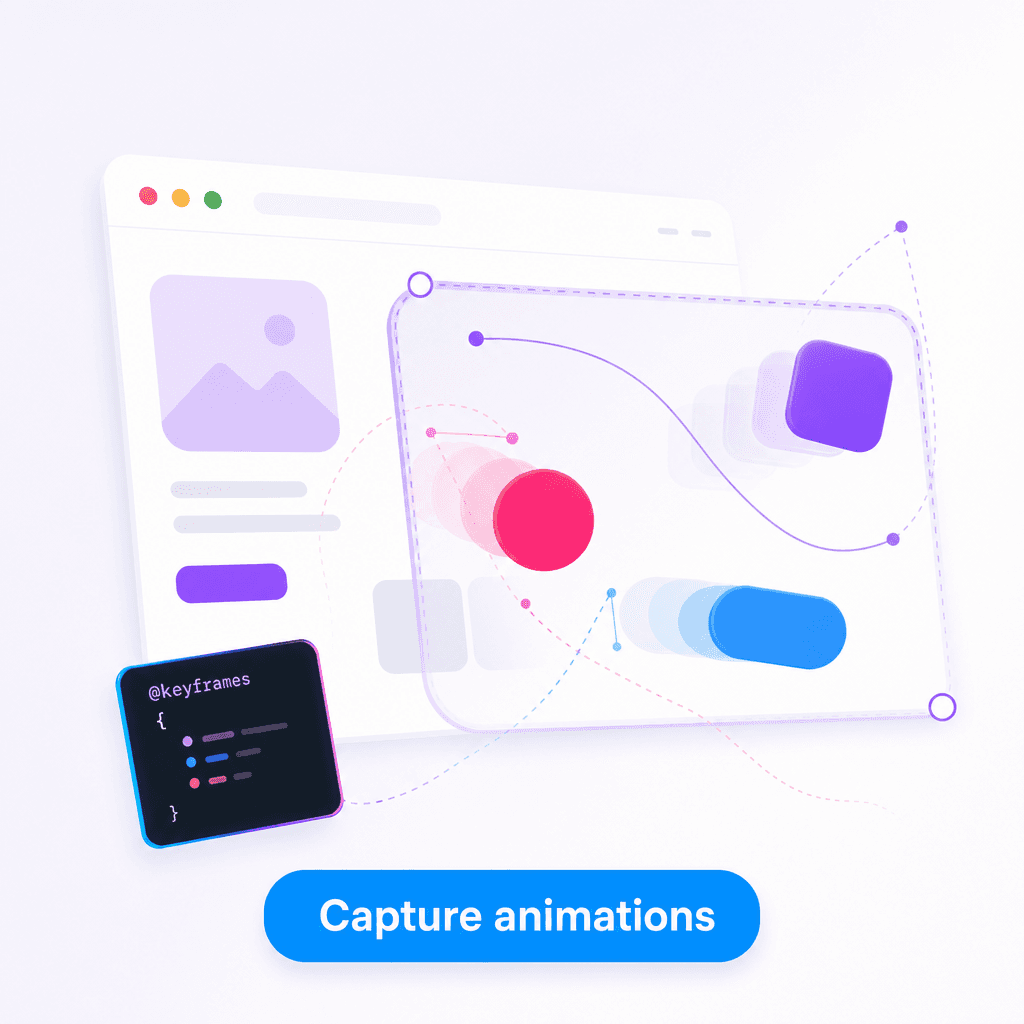
Slicer extracts the complete component including all animation and interaction data — no DevTools archaeology required.
Activate Slicer on any page by clicking the extension icon in your Chrome toolbar, select your component, and you're into the Canvas. Unlike other copy tools or DevTools inspection, Slicer doesn't just capture the pixel-perfect visual — it pulls the full interaction layer too. The output includes:
- All
@keyframesdefinitions, reconstructed and named cleanly - Transition values (duration, easing, delay) for every interactive state
- Hover and focus state rules
- Animation timing for staggered elements
- Marquee and carousel configuration
From the Canvas you can apply your brand style before exporting as clean React code or an AI prompt.
What extracted animations look like
Here's an example of what Slicer outputs for a card with a hover lift and staggered child animation:
@keyframes fadeInUp {
  from {
    opacity: 0;
    transform: translateY(16px);
  }
  to {
    opacity: 1;
    transform: translateY(0);
  }
}

.card {
  transition: transform 200ms ease, box-shadow 200ms ease;
}

.card:hover {
  transform: translateY(-4px);
  box-shadow: 0 20px 40px -8px rgba(0, 0, 0, 0.12);
}

.card .icon {
  animation: fadeInUp 300ms ease both;
  animation-delay: 100ms;
}

.card .title {
  animation: fadeInUp 300ms ease both;
  animation-delay: 160ms;
}

.card .description {
  animation: fadeInUp 300ms ease both;
  animation-delay: 220ms;
}
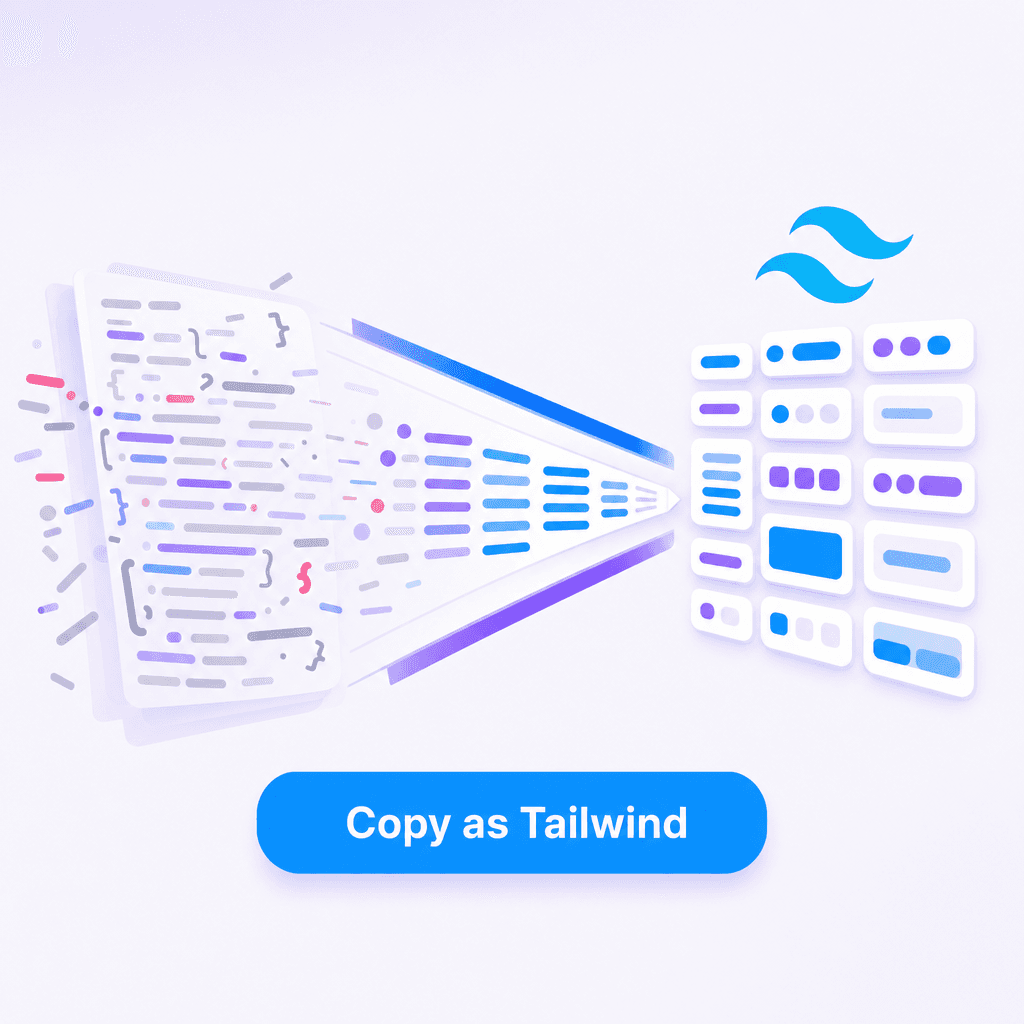
In the React export, these get converted to Tailwind where possible, with raw CSS custom properties for the parts Tailwind doesn't cover.
Specific animation types Slicer handles
Marquee / infinite scroll — captures direction, speed, gap between items, pause-on-hover behavior.
Typewriter / text cycling — captures the timing between characters and between phrases, the cursor style if present.
CSS entrance animations — reconstructs @keyframes with correct easing and timing, maps to appropriate utility classes.
3D perspective transforms — captures perspective, rotateX, rotateY values and the transform-style: preserve-3d chain.
Carousel / slider — captures slide count, autoplay interval, transition duration and easing, navigation style.
For scroll-triggered animations (via GSAP, AOS, or Intersection Observer), scroll the page to trigger the animation before selecting — Slicer captures the computed state as it is when you click.
When you still want DevTools
Slicer handles extraction well, but DevTools is still the right tool when:
- You want to understand why an animation works, not just copy it
- You're debugging a specific computed value on your own site
- You need to inspect the raw source code or network requests
Use Slicer when you want the output. Use DevTools when you want to understand.
Getting the most out of extracted animations
After extracting, a few things worth doing:
- Name your keyframes — Slicer gives them clean names, but rename to match your project
- Extract timing to variables — put durations and easings into CSS variables so they're easy to adjust globally
- Check reduced-motion — add
@media (prefers-reduced-motion: reduce)variants for acessibility
@media (prefers-reduced-motion: reduce) {
  .card {
    transition: none;
  }
  .card:hover {
    transform: none;
  }
}
The animation is the easy part once you have the values. The hard part is finding them — which is what Slicer solves.