How to copy a UI component from any website
You've found a UI component on a website that's exactly what you need — a pricing card, a testimonial layout, a nav with a dropdown. Now you want it in your own project.
There are two ways to do this. One takes about two hours. The other takes about thirty seconds.
The hard way: DevTools
This is what most people do, at least the first time.
- Open Chrome DevTools (
F12or right-click → Inspect) - Find the the element in the Elements panel
- Copy the HTML structure
- Hunt through the Styles panel for the relevant CSS
- Separate component styles from global styles (good luck)
- Deal with class name obfuscation (
.sc-bczRLJ, anyone?) - Figure out what the hover states and animations are doing
- Reconstruct it in your codebase
- Realize the responsive behavior is different at mobile widths
- Go back and do it again
The output is usually a rough approximation of the original — close enough but not quite right.
/* Two hours of DevTools later */
.card-thing {
  padding: 24px; /* I think? */
  border-radius: 12px; /* maybe */
  /* TODO: figure out the hover animation */
  /* TODO: check what happens below 768px */
}
The fast way: Slicer
Slicer is a Chrome extension built specifically for extracting UI components from websites.
Install the extension, then on any webpage:
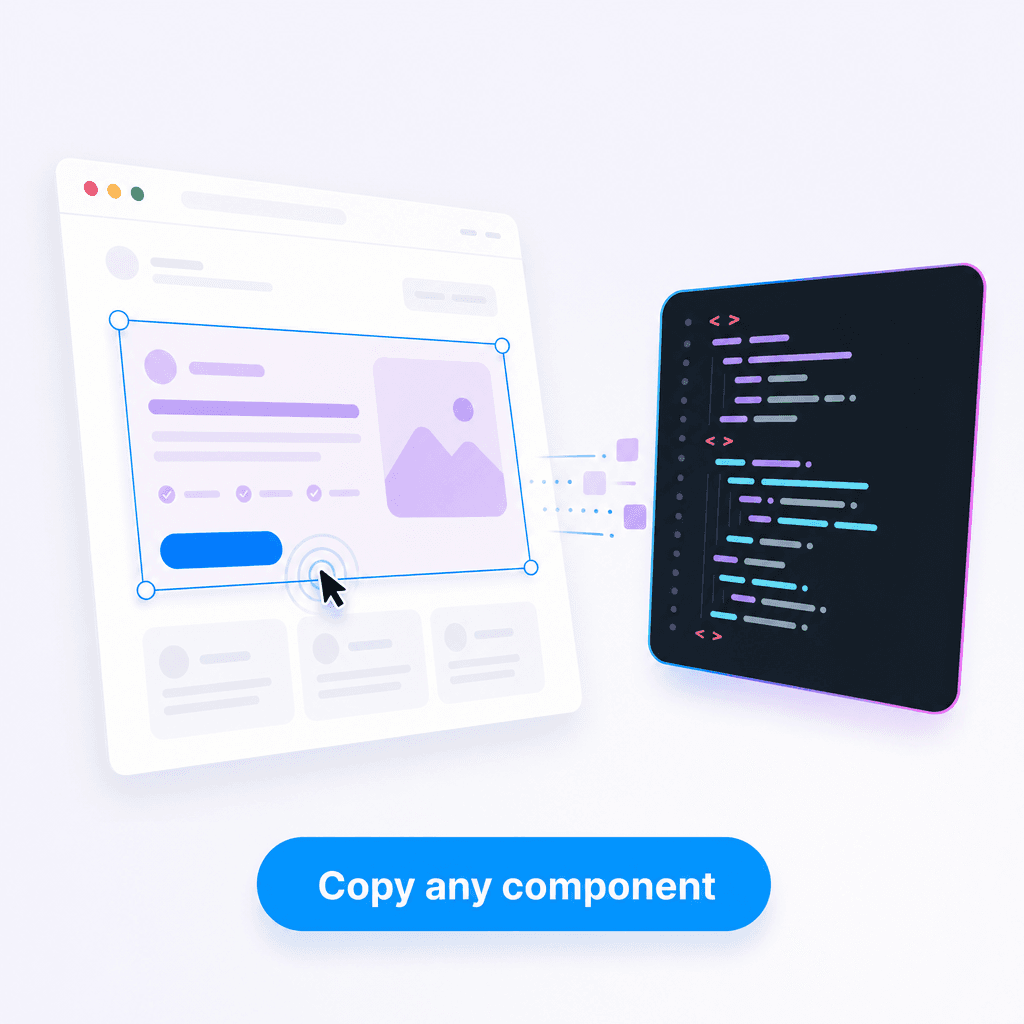
- Click the Slicer icon in your Chrome toolbar to activate it
- Hover over the component you want — you'll see a highlight around it
- Click to select it
- Remix it on the Canvas — apply your brand colors and style before exporting
- Export as React code or AI prompt
- Done
The whole thing takes under a minute.
If the highlight is selecting too much or too little, use the arrow keys while Slicer is active: ↑ moves selection up to the parent element, ↓ moves it down to a child. You'll find the right component boundary in a few keystrokes.
What you get
Slicer extracts the component fully — not just the outer frame but the complete structure, styles, interactions, and responsive behavior. Then you remix it on the Canvas before exporting.
React export
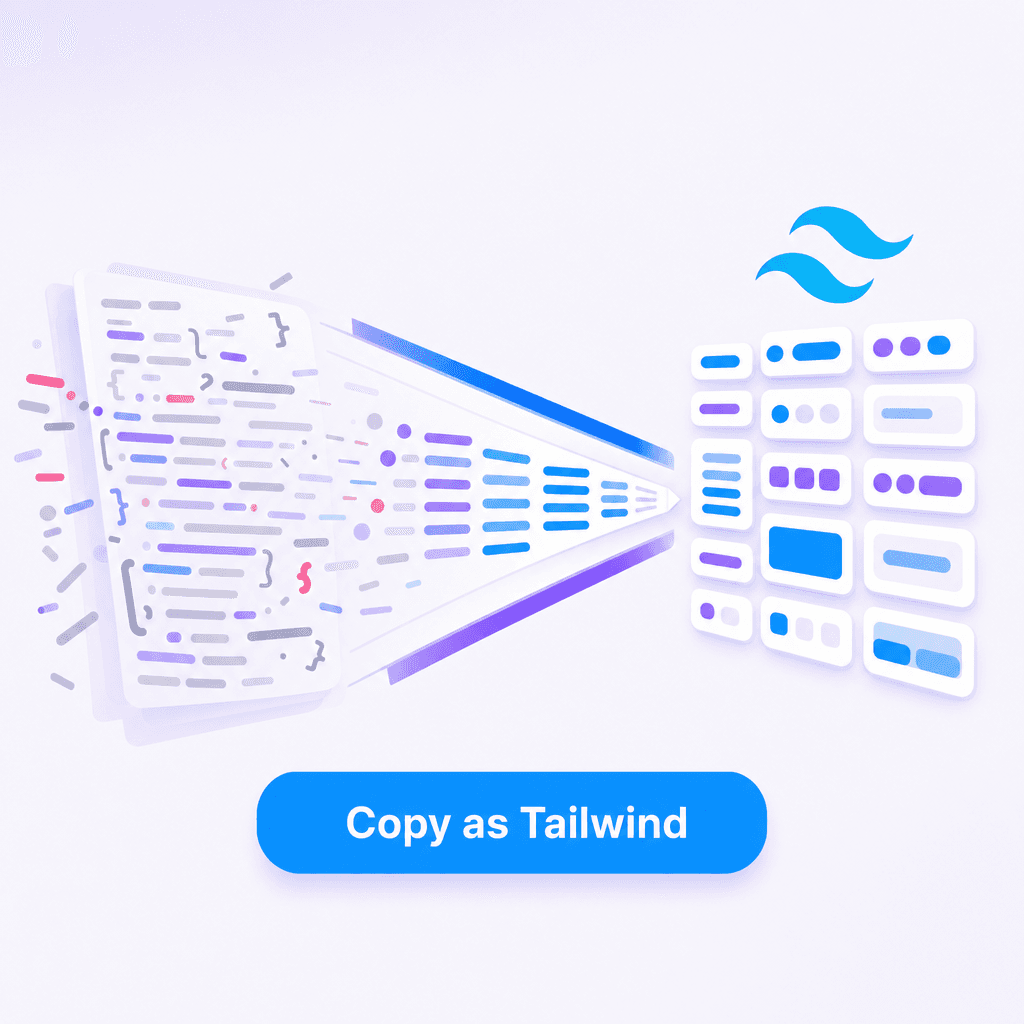
Clean JSX with Tailwind CSS classes, generated by AI from the extracted component:
export function PricingCard({ plan, price, features, highlighted }: PricingCardProps) {
  return (
    <div className={cn(
      "rounded-2xl p-8 ring-1 ring-gray-200",
      highlighted && "bg-blue-600 ring-blue-600 text-white"
    )}>
      <h3 className="text-lg font-semibold">{plan}</h3>
      <p className="mt-4 text-4xl font-bold tracking-tight">{price}</p>
      <ul className="mt-8 space-y-3">
        {features.map((feature) => (
          <li key={feature} className="flex items-center gap-3 text-sm">
            <CheckIcon className="h-4 w-4 shrink-0" />
            {feature}
          </li>
        ))}
      </ul>
    </div>
  );
}
AI prompt export
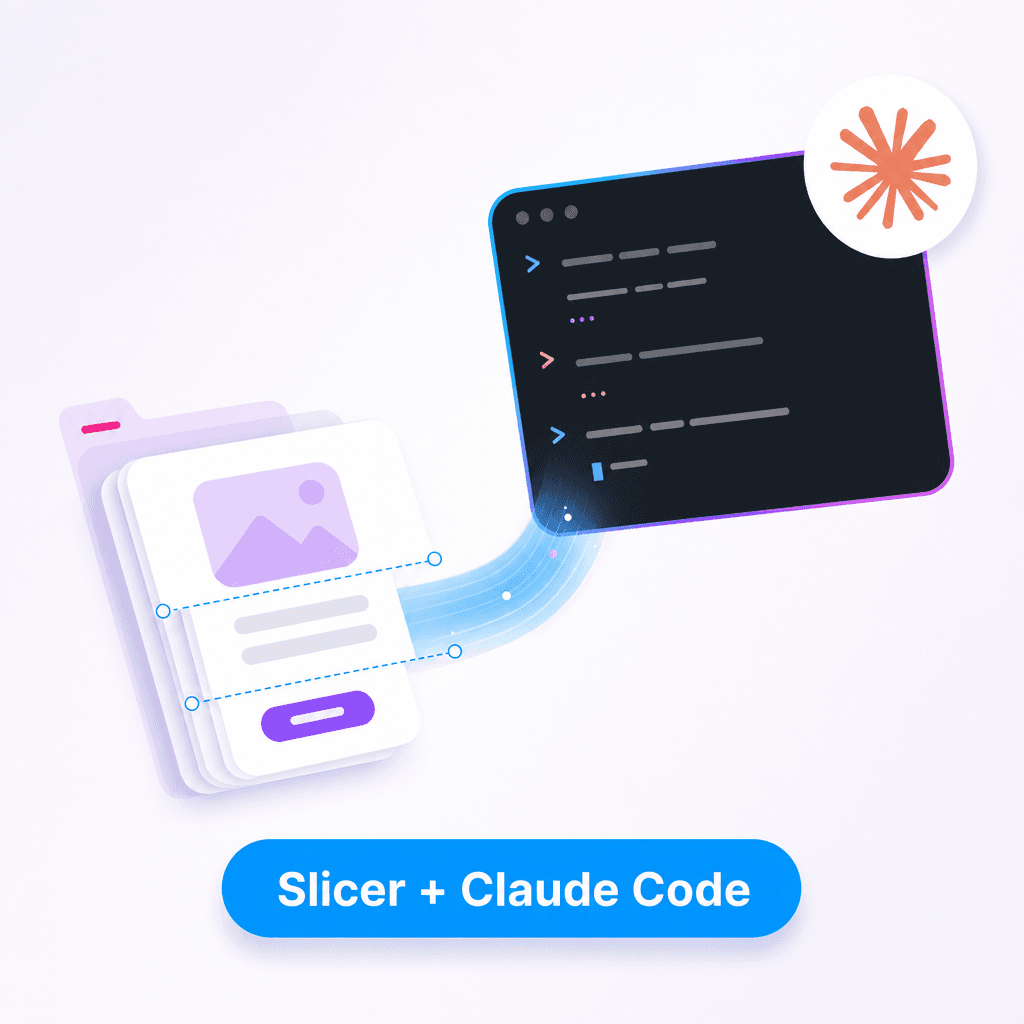
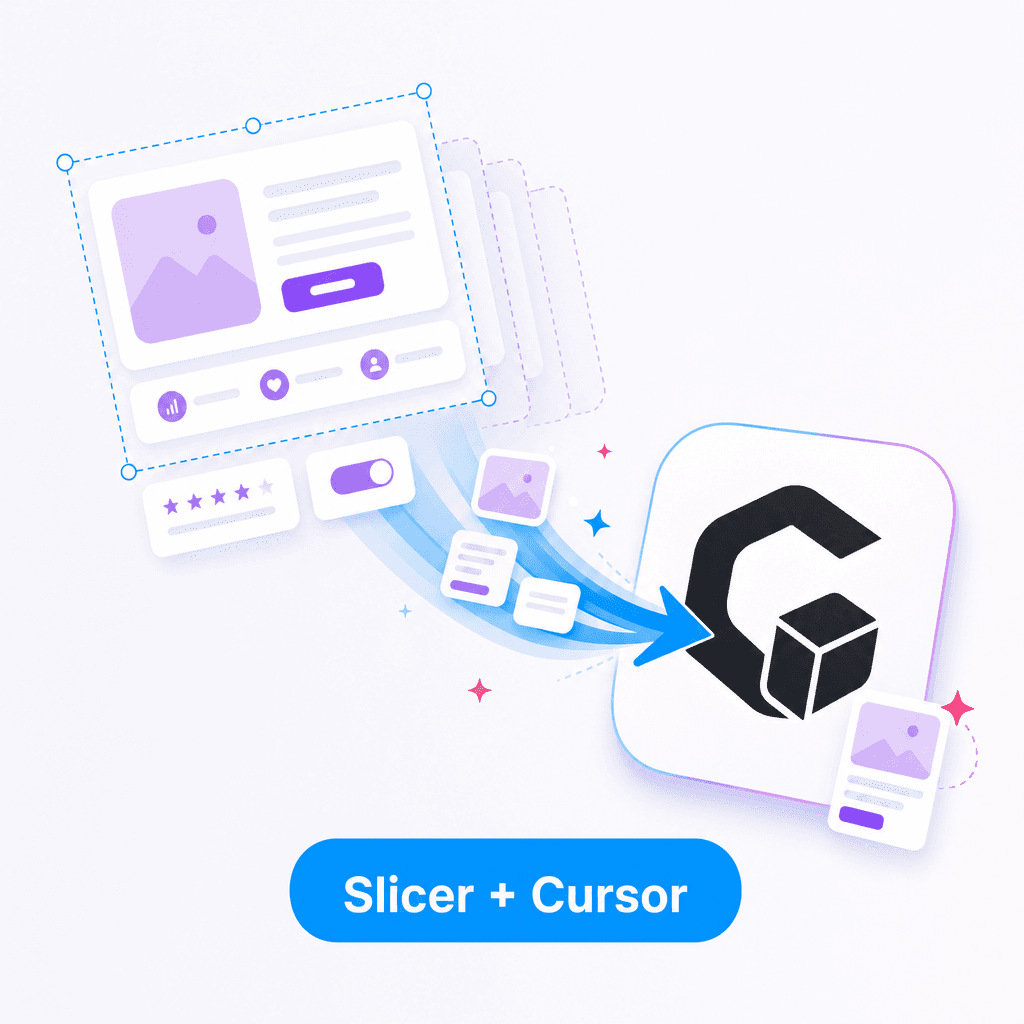
A detailed description of the component — colors, spacing, interaction states, animation timing. Drop it straight into Cursor, v0, Lovable, or Claude and the AI works from a real reference instead of its imagination.
The AI prompt export is especially handy when you want to feed an exact design spec to Cursor, v0, or Claude instead of describing it from memory.
What Slicer captures that other tools miss
Most browser copy tools, design inspection tools, and even vibe coding tools only extract what's visually rendered — the static snapshot. Slicer captures the full picture, including everything that makes a component behave:
| DevTools | Other copy tools | Slicer | |
|---|---|---|---|
| HTML structure | ✓ | ✓ | ✓ |
| CSS styles | Partial | Partial | ✓ |
| Hover states | Manual | ✗ | ✓ |
| CSS animations | Manual | ✗ | ✓ |
| Transition timing | Manual | ✗ | ✓ |
| Responsive breakpoints | Manual | ✗ | ✓ |
| Brand remixing on Canvas | ✗ | ✗ | ✓ |
| Clean React + AI output | ✗ | ✗ | ✓ |
When to use each
Use DevTools when you need to understand why something looks the way it does — debugging, learning, or making surgical changes to a specific style. It's a great inspection tool.
Use Slicer when you want to actually copy and reuse a component in your project. It's built for extraction, not for inspection.
Getting started
Install Slicer from slicer.dev — it takes about 30 seconds. Free accounts get a handful of extractions per month to try it out.
Next time you find a UI component you want, you'll spend your time shipping it, not reconstructing it.