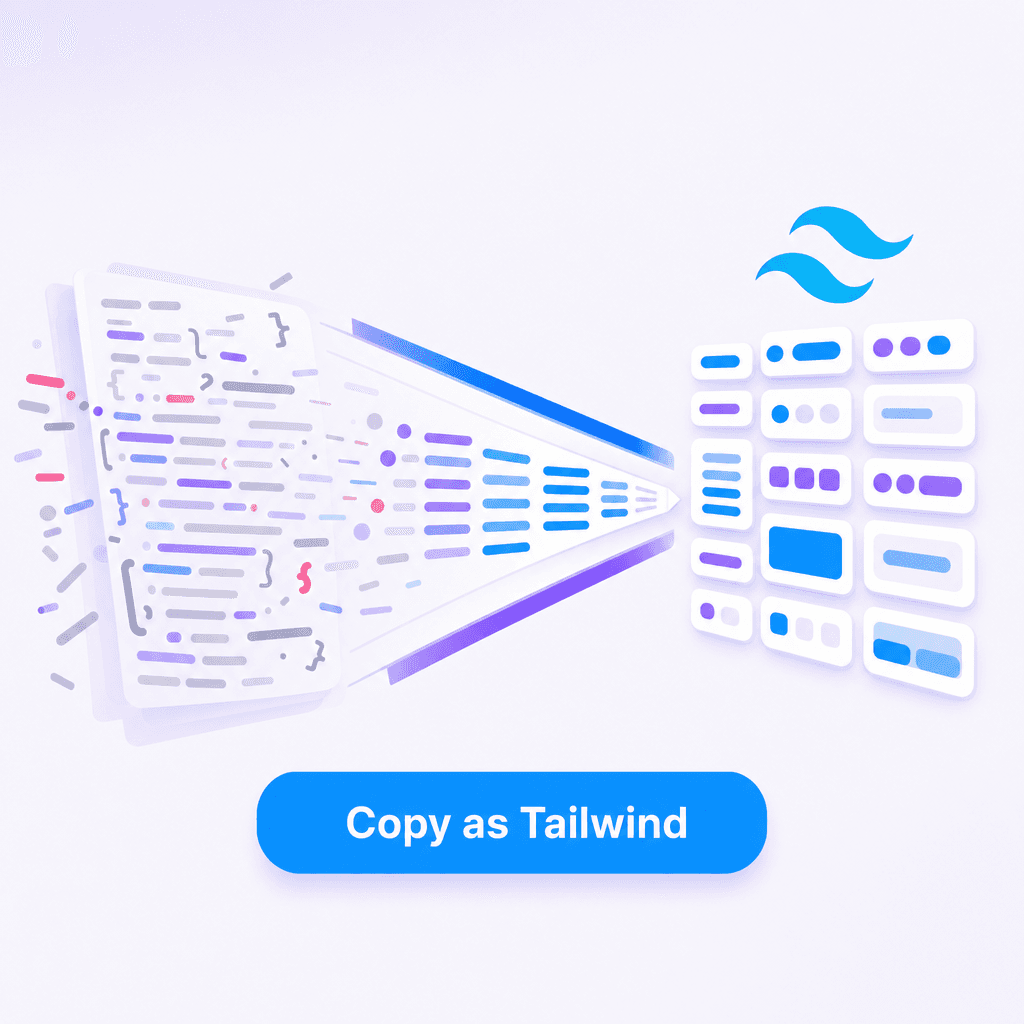

How to turn any website element into a React component
The gap between "I want that" and "I have that in my project" is where most of your time disappears when you're trying to ship something. You spot a well-designed component on a website — a feature card, a testimonial block, a nav dropdown — and you want it in your React app.
The manual path is painful. The fast path takes about a minute.
What you're actually trying to do
When you see an element on a website and want it as a React component, you need:
- The HTML structure — what the DOM looks like
- The styles — colors, spacing, typography, layout
- The interactive behavior — hover states, click handlers, animations
- The responsive rules — how it changes at different breakpoints
- A React-shaped component — props, composable structure, types
Doing all of this manually from DevTools gets you a rough approximation. Doing it with Slicer gets you a working component.
The one-minute workflow
1. Install the Slicer Chrome extension
If you already have it, skip this.
2. Navigate to the page with the element you want
This works on any public website. If you're logged into a site, it works there too — Slicer operates in your browser context.
3. Activate Slicer
Click the Slicer icon in your Chrome toolbar. A selection overlay appears on the page.
4. Select the element
Hover over the component — you'll see a blue highlight around it. Slicer uses DOM structure to find component boundaries, so it typically selects the right level automatically.
If the selection is too broad, move your cursor inward to a child element. If it's too narrow, use the keyboard:
↑  Move selection up to parent element
↓  Move selection down to child element
5. Remix on Canvas
After selecting, you land on the Canvas. Apply your brand colors, swap styles, or leave it as-is. When you're ready, export as React.
Slicer generates clean JSX with Tailwind classes and TypeScript prop types using AI — the Canvas step is where you make it yours before the code is generated.
What you get
Here's an example output for a feature card with an icon, title, and description:
interface FeatureCardProps {
  icon: React.ReactNode;
  title: string;
  description: string;
  href?: string;
}

export function FeatureCard({ icon, title, description, href }: FeatureCardProps) {
  return (
    <a
      href={href}
      className="group flex flex-col gap-4 rounded-2xl bg-white p-6 shadow-sm ring-1 ring-gray-100 transition-all duration-200 hover:-translate-y-0.5 hover:shadow-md"
    >
      <div className="flex h-10 w-10 items-center justify-center rounded-xl bg-blue-50 text-blue-600 transition-colors group-hover:bg-blue-100">
        {icon}
      </div>
      <div>
        <h3 className="text-sm font-semibold text-gray-900">{title}</h3>
        <p className="mt-1 text-sm text-gray-500 leading-relaxed">{description}</p>
      </div>
    </a>
  );
}
Notice what's already handled: TypeScript interface with appropriate types, hover state with a lift effect and shadow increase, icon container with hover color transition, group class wiring the parent hover to child color change, and accessible link wrapping.
This is the kind of component you'd spend 30–45 minutes writing carefully from scratch. Slicer produces it in seconds.
Adapting the output
The generated component is a starting point, not a final product. Things you'll typically want to adjust:
Replace hardcoded strings with your content — the component ships with the source site's text, swap it for yours.
Remap colors to your brand — replace blue-600 with your own primary color (or your design token if you have one).
Rename to fit your project — FeatureCard might become ServiceCard or BenefitItem.
Add your logic — click handlers, state, data. Slicer gives you the visual component, you wire up the behavior.
export function FeatureCard({ icon, title, description, href, onClick }: FeatureCardProps) {
  const handleClick = (e: React.MouseEvent) => {
    trackEvent('feature_card_click', { title });
    onClick?.(e);
  };

  return (
    <a href={href} onClick={handleClick} className="...">
      {/* rest of component */}
    </a>
  );
}Slicer strips out site-specific assets (images, fonts loaded from CDNs) and replaces them with placeholder references. You'll need to provide your own assets.
Beyond single components
Once you have a few components, you can start building a local library:
src/
  components/
    ui/           ← shadcn/ui primitives (buttons, inputs, etc)
    marketing/    ← extracted and remixed marketing components
      FeatureCard.tsx
      TestimonialCard.tsx
      PricingCard.tsx
      HeroSection.tsx
The extracted components live alongside your shadcn primitives. The primitives handle the boring stuff; the extracted components handle the parts that make your product look like your product.
What this replaces
| Before | After |
|---|---|
| 45 mins in DevTools | 1 minute with Slicer |
| Approximate CSS reconstruction | Exact values extracted |
| Missing hover and animation states | All interactive states included |
| No TypeScript types | Typed props generated |
| Manual responsive handling | Breakpoints captured |
| Generic AI output | Canvas-remixed, brand-applied component |
The DevTools path teaches you things. Its worth doing once for a component you want to deeply understand. But when you just need the component in your codebase and you need it now — this is the way.